
Release Notes 10/28/2026
Release NotesPOS:
Orders:
- In the new version, customer phone numbers on the pickup/walk-in order information page are displayed as (XXX) YYY - ZZZZ for easier reading and verification. [Ticket #365788]
- Previously, the POS could skip the weight entry screen for weighted items with $0 item price and are priced by a modifier. This has been fixed. Weight entry now appears when adding or editing these items, and the price is calculated from the entered weight.
Print:
- For printers using Native Mode > Yes configured in Advanced > System > Printer, we fixed the incorrect Card Price when Credit Surcharge and Cash Rounding are both enabled. The printed amount now matches the POS screen. Card payment amounts were already correct. [Ticket #365576]
- In the new version, the “iPad to Switch to Nearest Term Printer” feature under Setup > Payments > Credit Setting now also supports Sunmi terminals, allowing them to print receipts using the nearest terminal’s printer. [Ticket #365420]
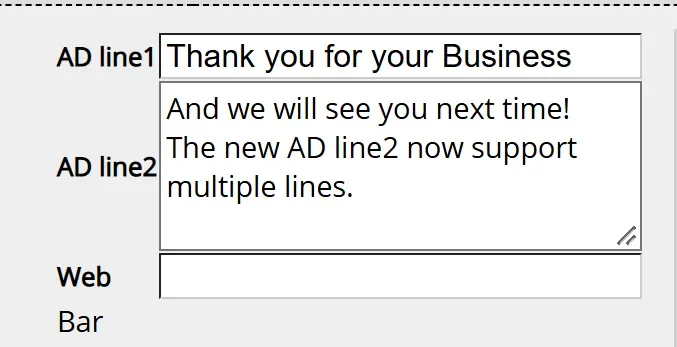
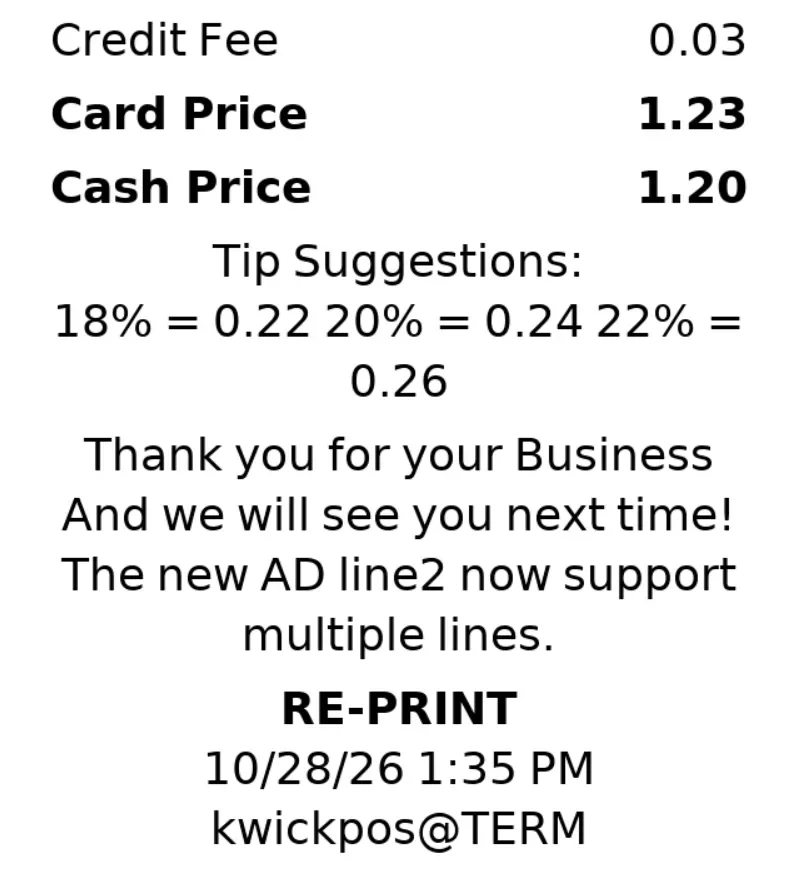
- In the new version, we allow the ticket footer to print more than two lines. The ticket footer can be adjusted under Advanced > System > General > AD line 2. [Ticket #365350]
Payment:
- In the new version, when a customer pays for an open tab order, tip options can be displayed on the Customer Display Screen (CDS) when the terminal is connected to a Magtek device. Enable this feature under Setup > Payments > Open Tab Tip Selection on Customer Display. [Ticket #365572]
- Previously, surcharge amounts could exceed the configured percentage due to rounding. This issue has been fixed in the new version. Configure at: Advanced > System > Rule & Credit Card > Surcharge Rounding > Truncate. [Ticket #365083]
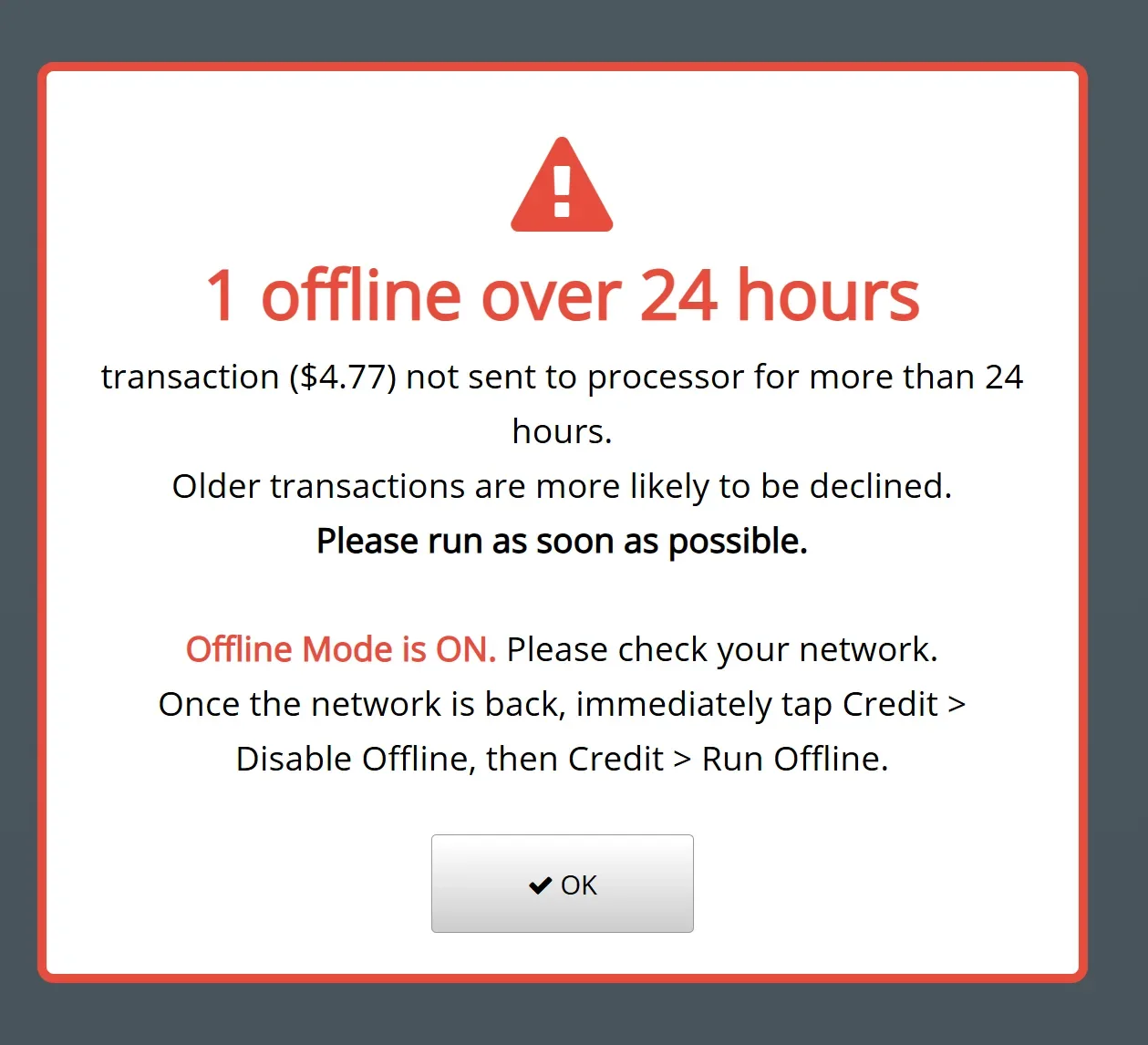
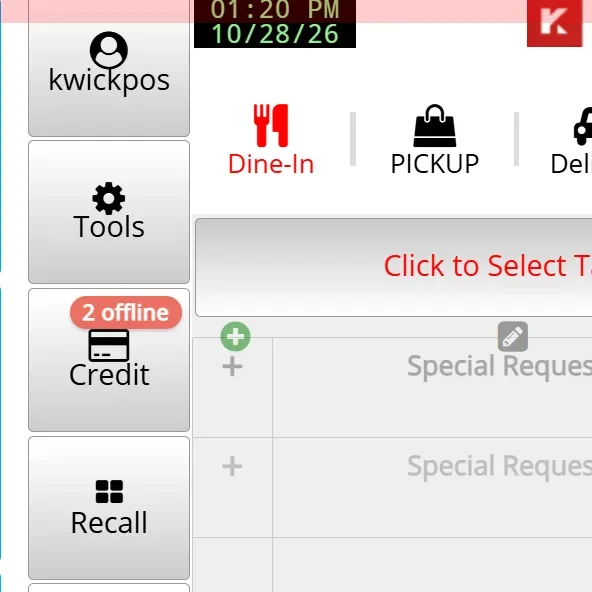
- In the new version, The POS now alerts users for offline transactions and offline mode. When Offline Mode is turned off, if there is any offline transaction, the Credit button will show a red "N offline" badge, and it blinks if any offline transaction is older than 24 hours. If a user enters into the credit page, a popup window asks them to run the offline transactions and provide guidelines. While Offline Mode is still on, the reminder badge and pop up only appears if any offline transaction is older than 24 hours. When a manager turns Offline Mode of, a popup window will remind them to run the offline transactions as soon as possible.
Report:
- We fixed missing end of month data in New Backoffice > Reporting > SMS Text. Users can now select the last day of the month as the end date without extending the range into the next month. [Ticket #363973]
- In the new version, if employees have more than two roles, summary sections of Clockin report are able to show each role detail. Configure at: Backoffice > Apps > Clock-in > Settings > Show per-role breakdown on Clockin Summary report.

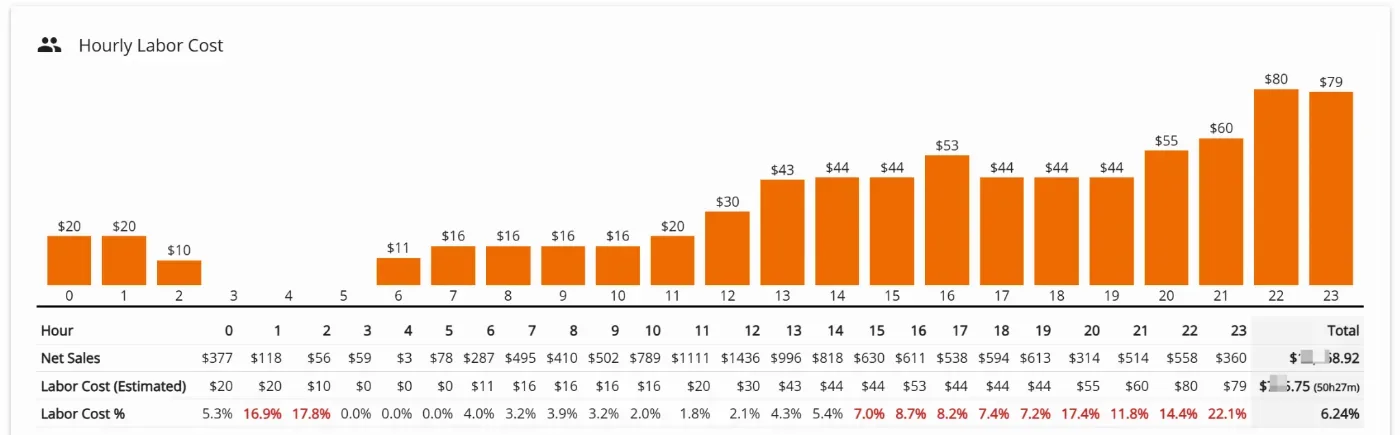
- In the new version, we added the ability to display labor cost per hour in Reporting > Sales Chart. Configure at: Backoffice > Setup > Report Format > Report > Labor Cost. [Ticket #366551]
New KDS:
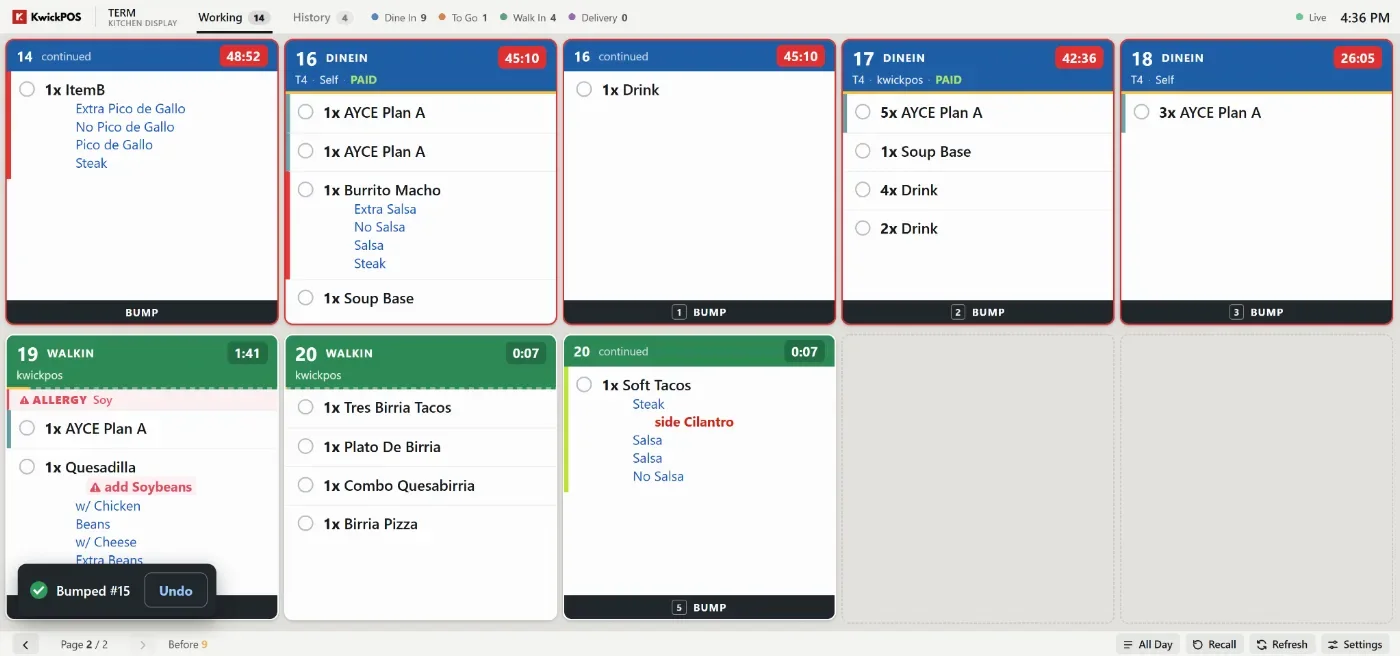
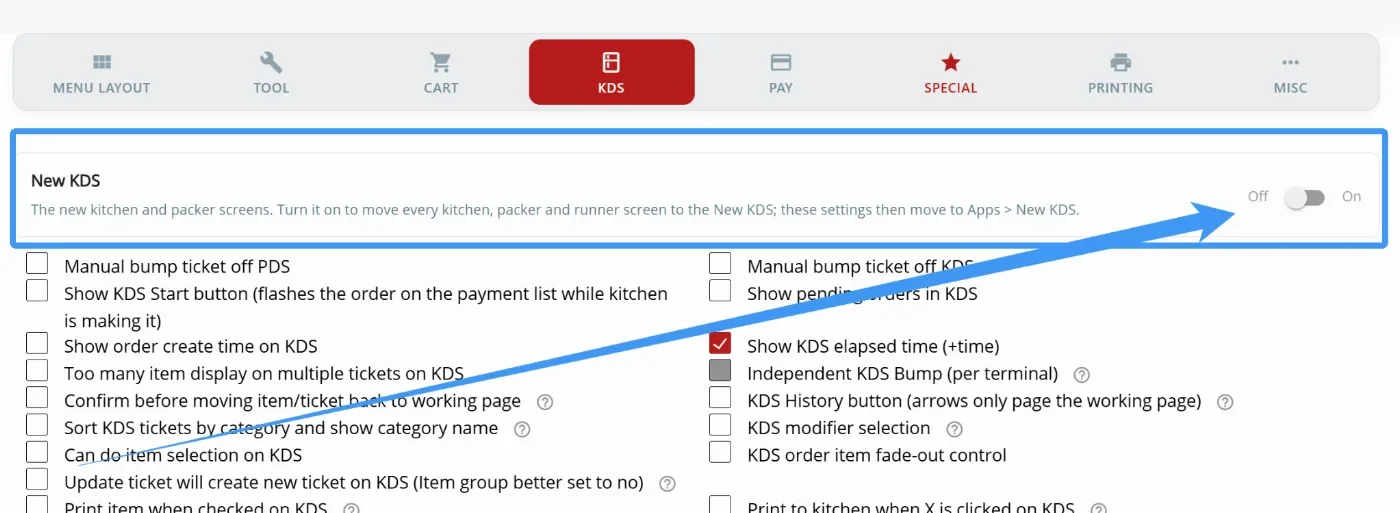
- We introduce the New KDS mode for Kitchen Display and Packer Display. The New KDS features a more modern interface and support settings in the old KDS mode. The New KDS also adds some functionality not available in the old KDS mode, as explained below. To use the New KDS mode, set a terminal to Kitchen Display, then go to Setup > Orders > KDS, turn on New KDS. The users will be redirected to the New KDS config page at Setup > Apps > New KDS.
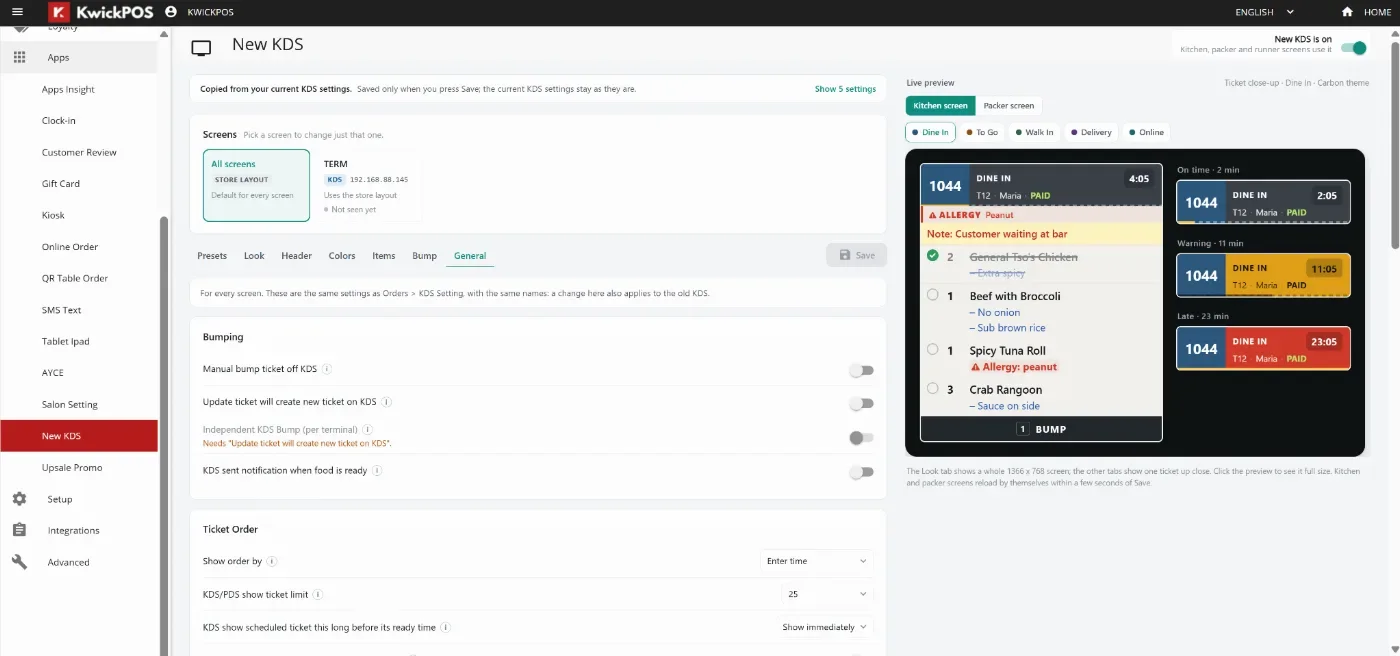
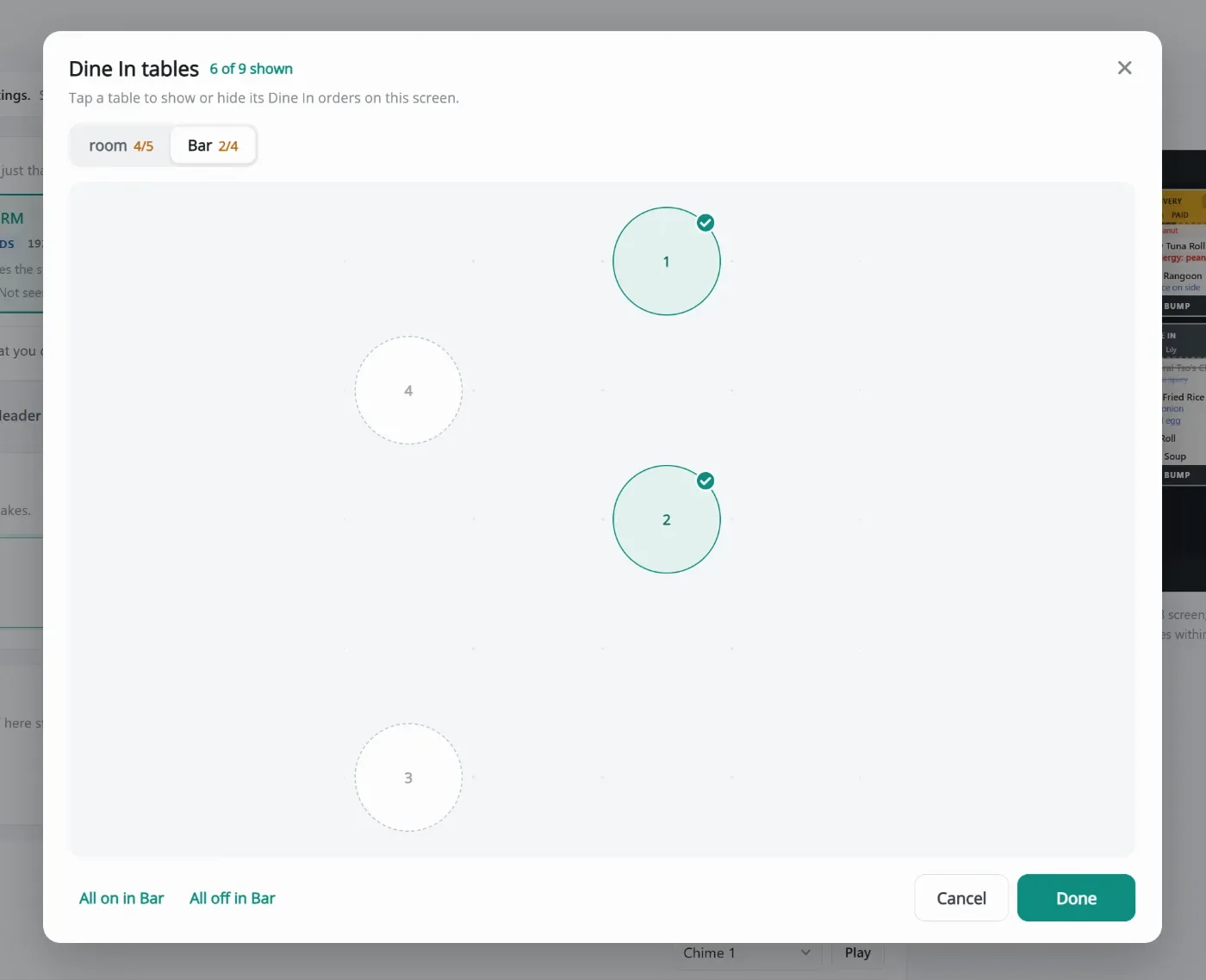
- In the new KDS, users can configure which tables show up on the KDS for Dine In orders. Configure at: Apps > New KDS > Select the KDS Terminal > Station > Dine In tables.
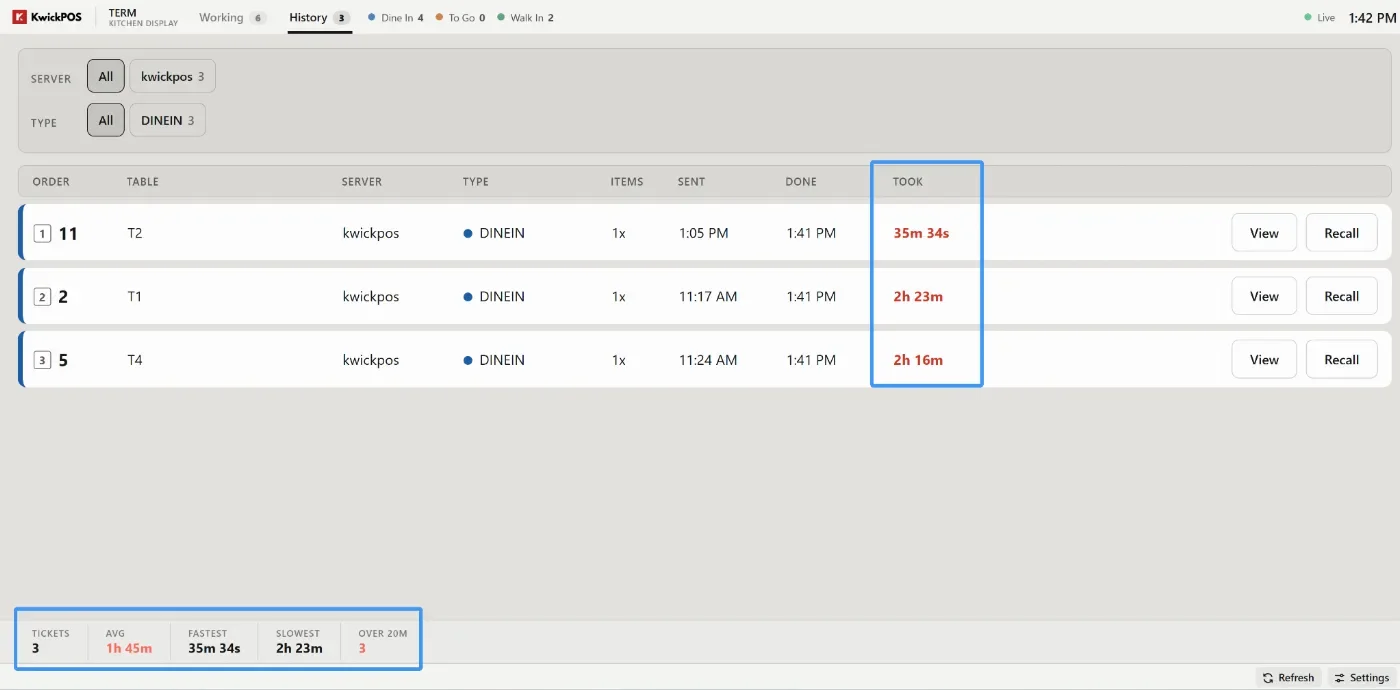
- In the new KDS, the KDS history page will now show the average finish time for all orders.
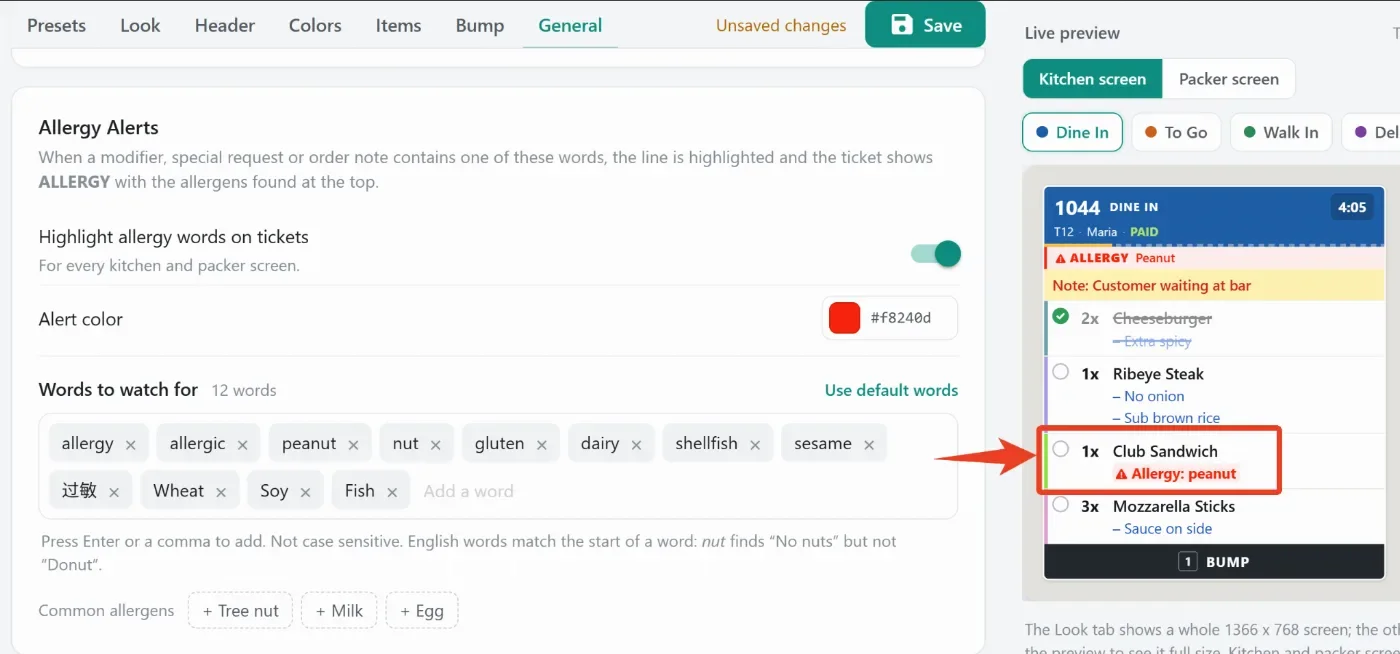
- In the new KDS, users can now configure allergy alert keywords to help kitchen identify allergy source. Configure at: Apps > New KDS > All Screens > General > Allergy Alert.
Other:
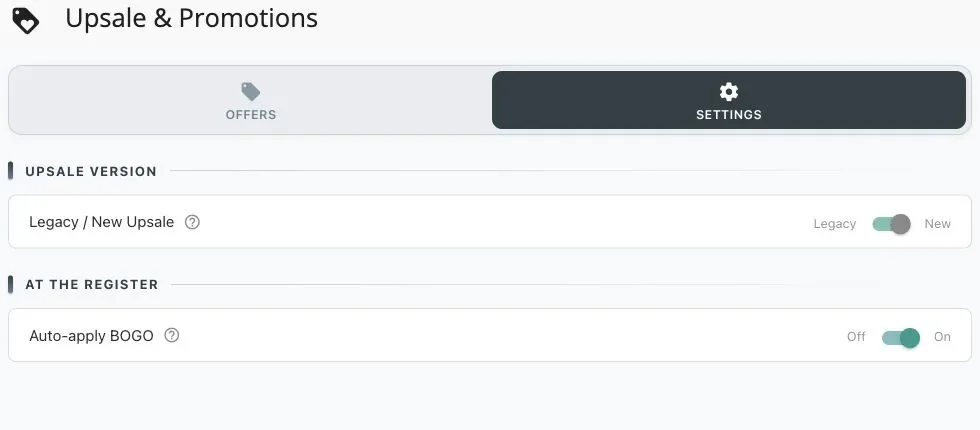
- In the new version, New Upsale BOGO offers can apply automatically. Configure at Apps > Upsale Promo > Settings > Auto-apply BOGO.
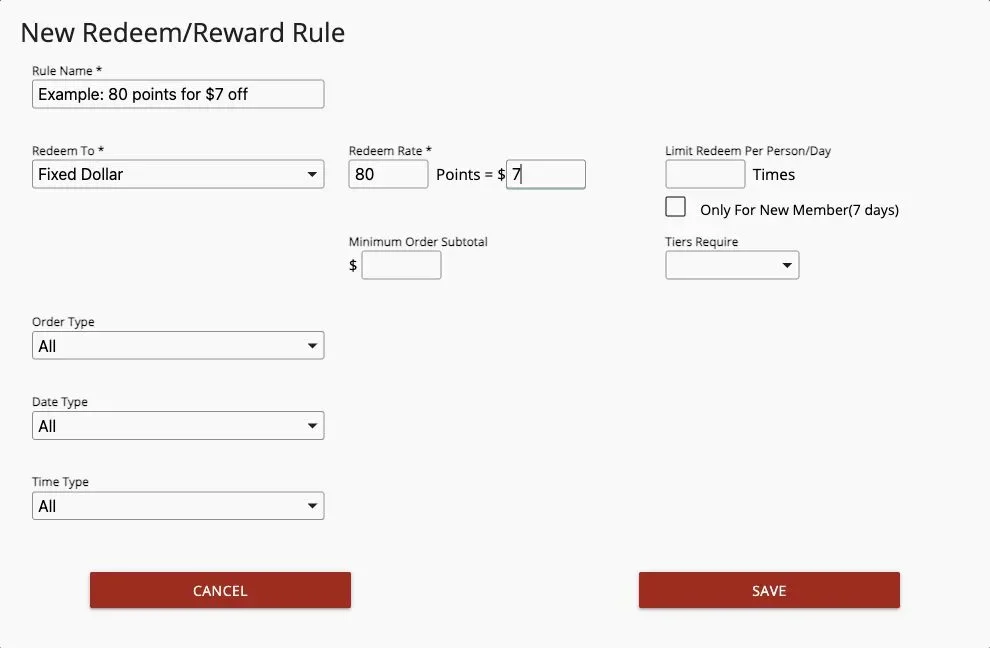
- In the new version, regular POS Loyalty and Chain Loyalty both support Fixed Dollar rewards. Setup: New Backoffice > Loyalty > Setting > Redeem / Reward > New Redeem/Reward Rule. Select Fixed Dollar, enter points and dollars, and Save. Use: On the payment page, open Loyalty, select the member and reward, then Apply. Full points will be deducted even if the order subtotal is less than the discount. [Ticket #366863]
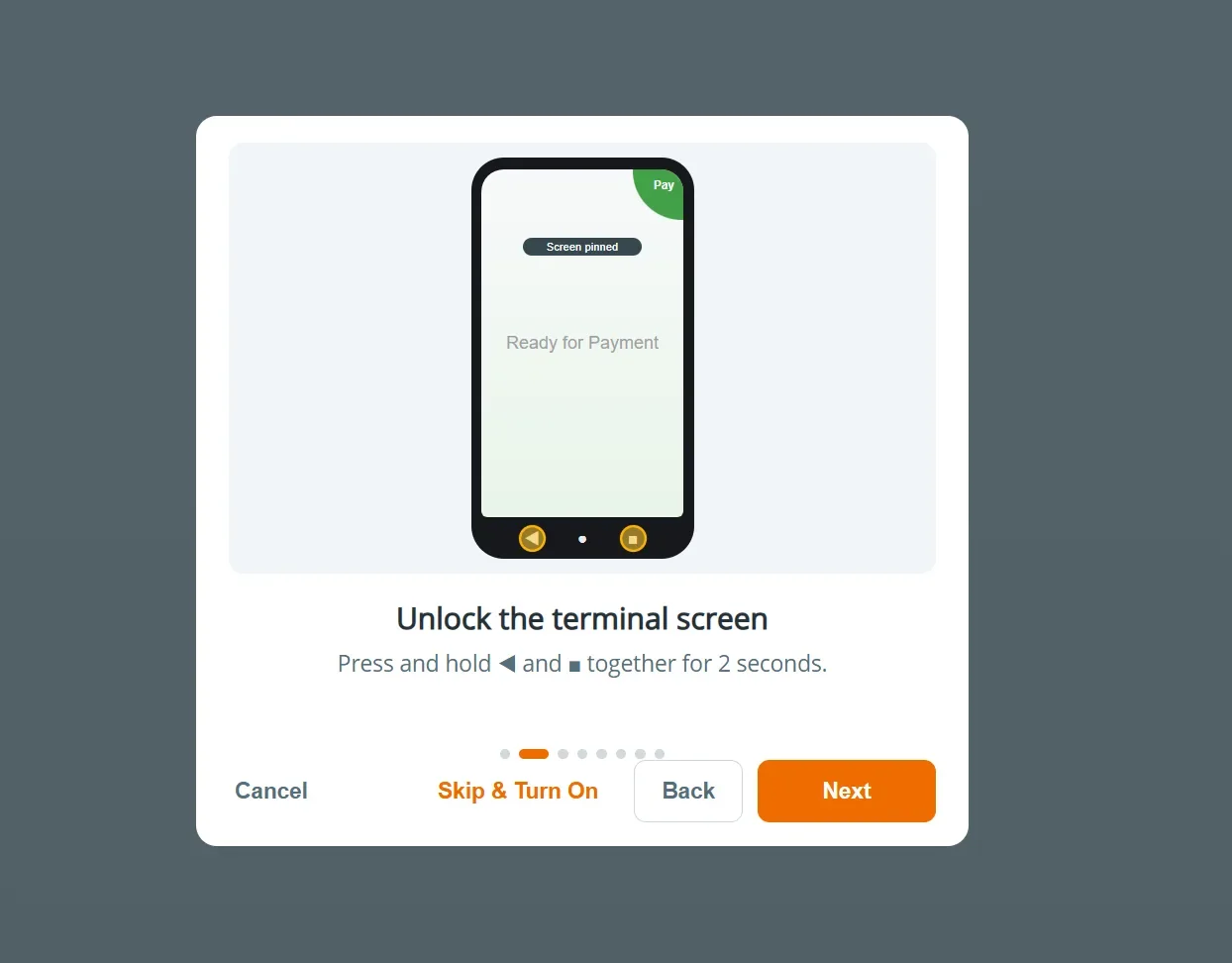
- In the new version, When a Dejavoo terminal is running in Offline Mode, the POS now shows step-by-step instructions on screen. They guide staff through taking card payments while offline.
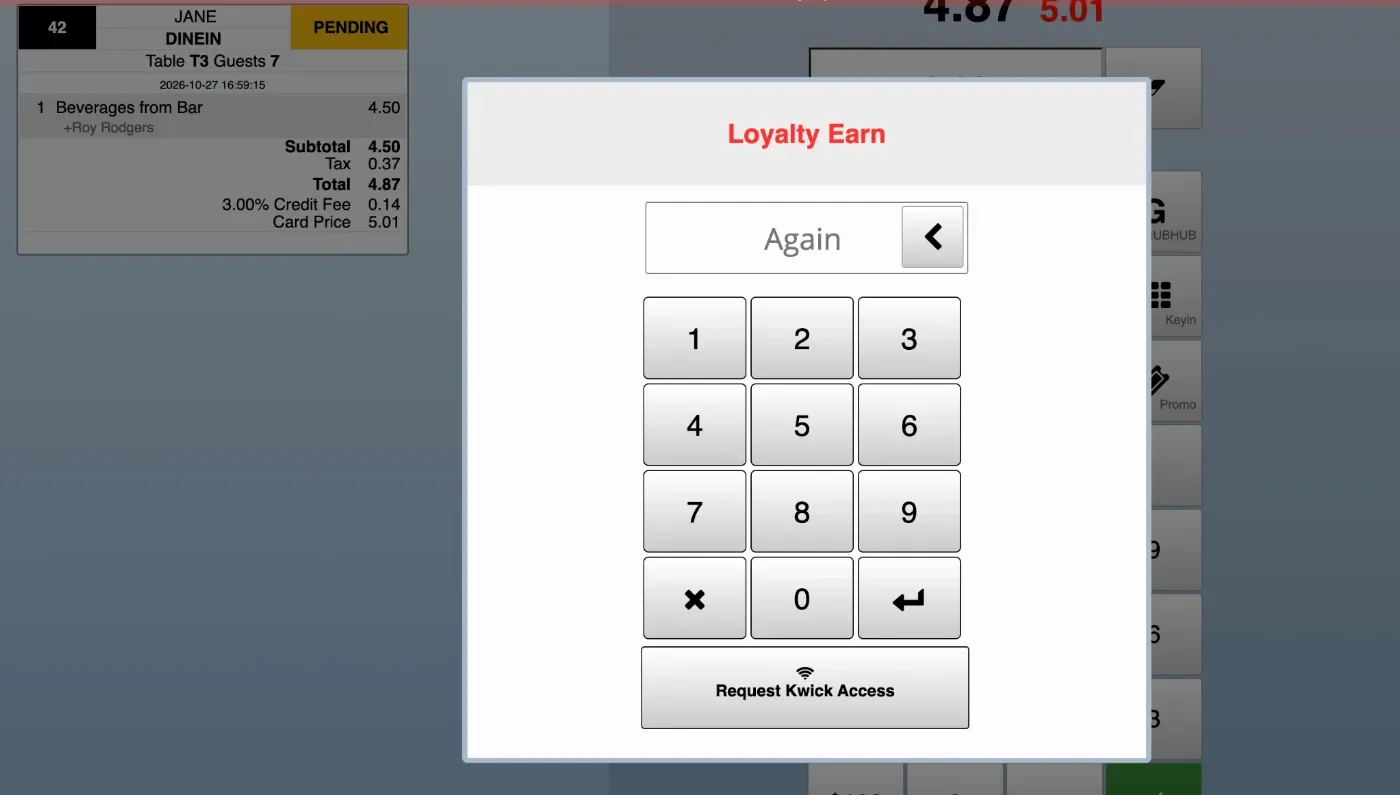
- In the new version, we added a Loyalty Earn permission to control whether employees can link or create loyalty members. Configure at: Backoffice > Employees > Permissions > Loyalty Earn. [Ticket #364347]
- In the new version, we improved Upsale promotions: Only one promotion can be applied per order, orders with promotions cannot be combined, free items can now be selected continuously, and order discounts must be applied manually.
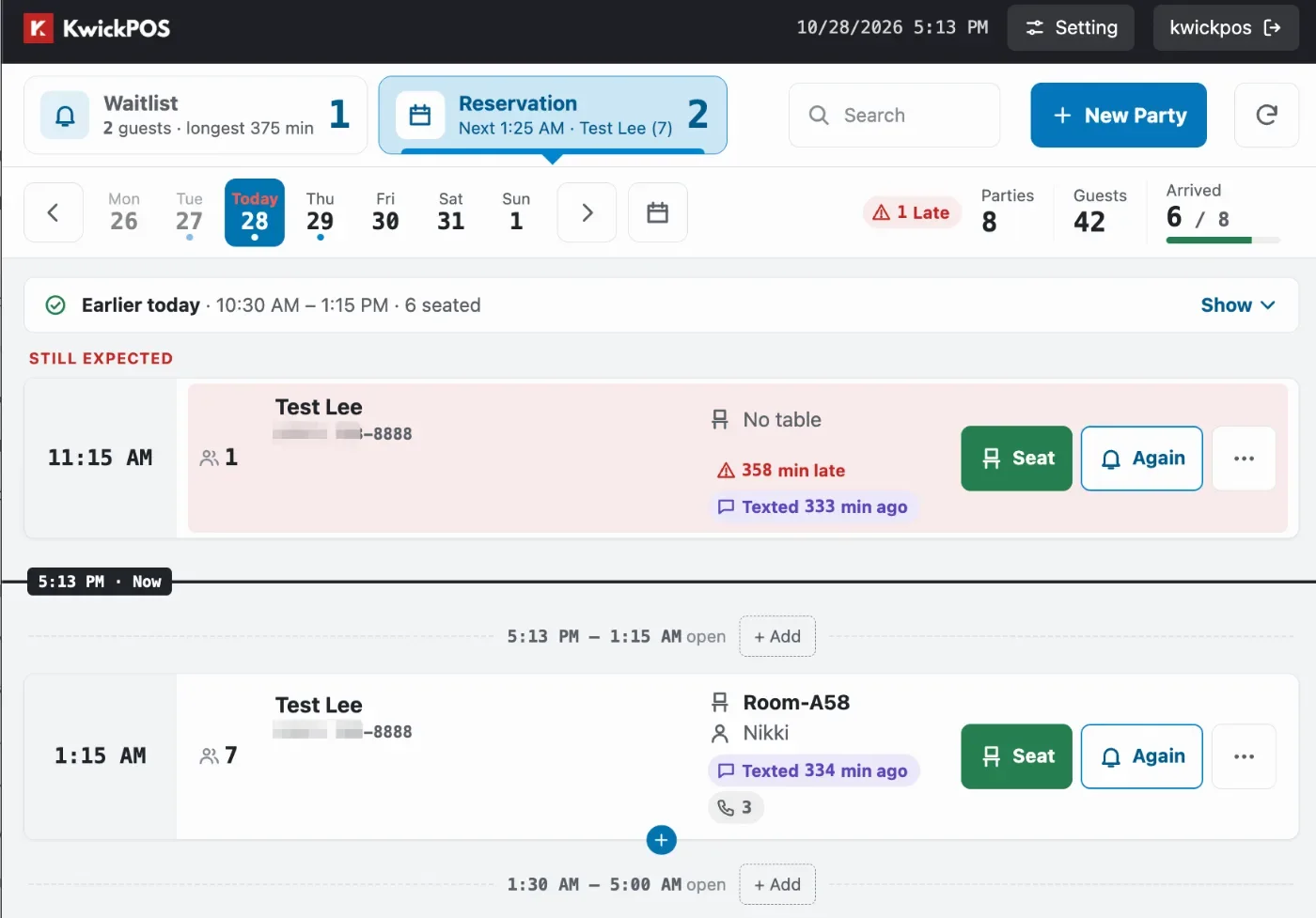
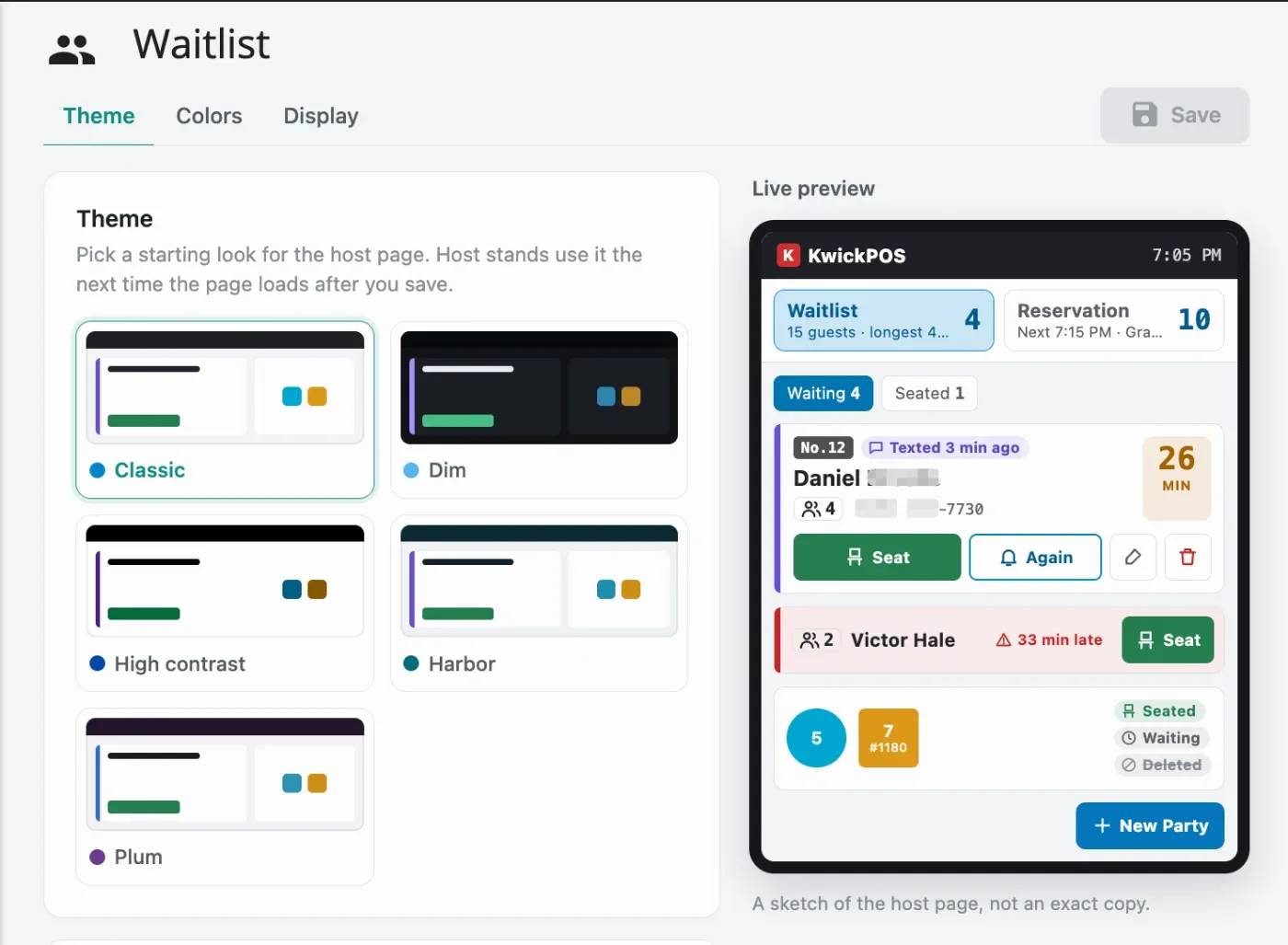
- In the new version, the POS waitlist and reservation pages have been optimized with improved layouts and enhanced functionality. Enable this feature under General > New Wait List > v2027. Waitlist theme settings are available under Apps > Waitlist.
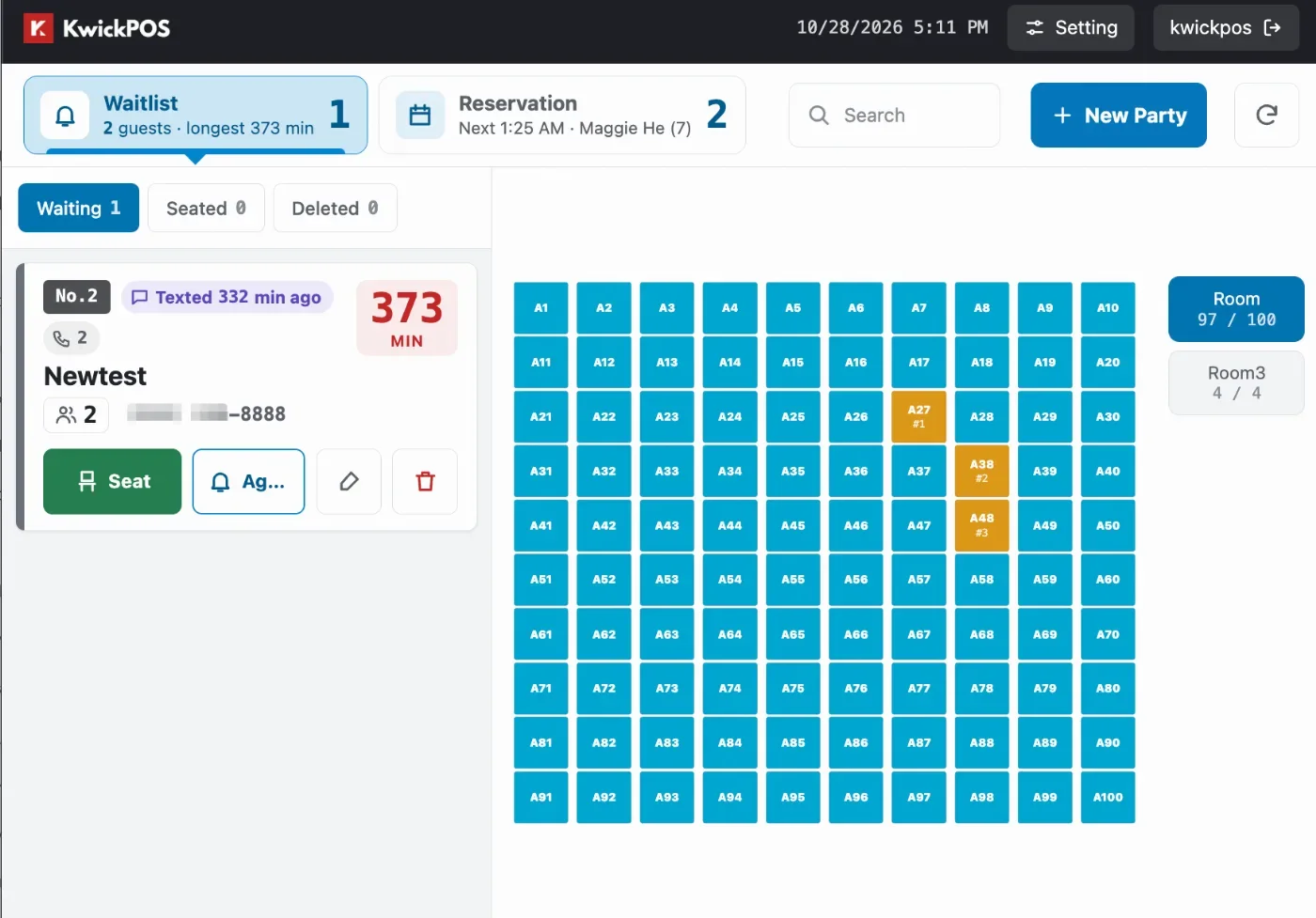
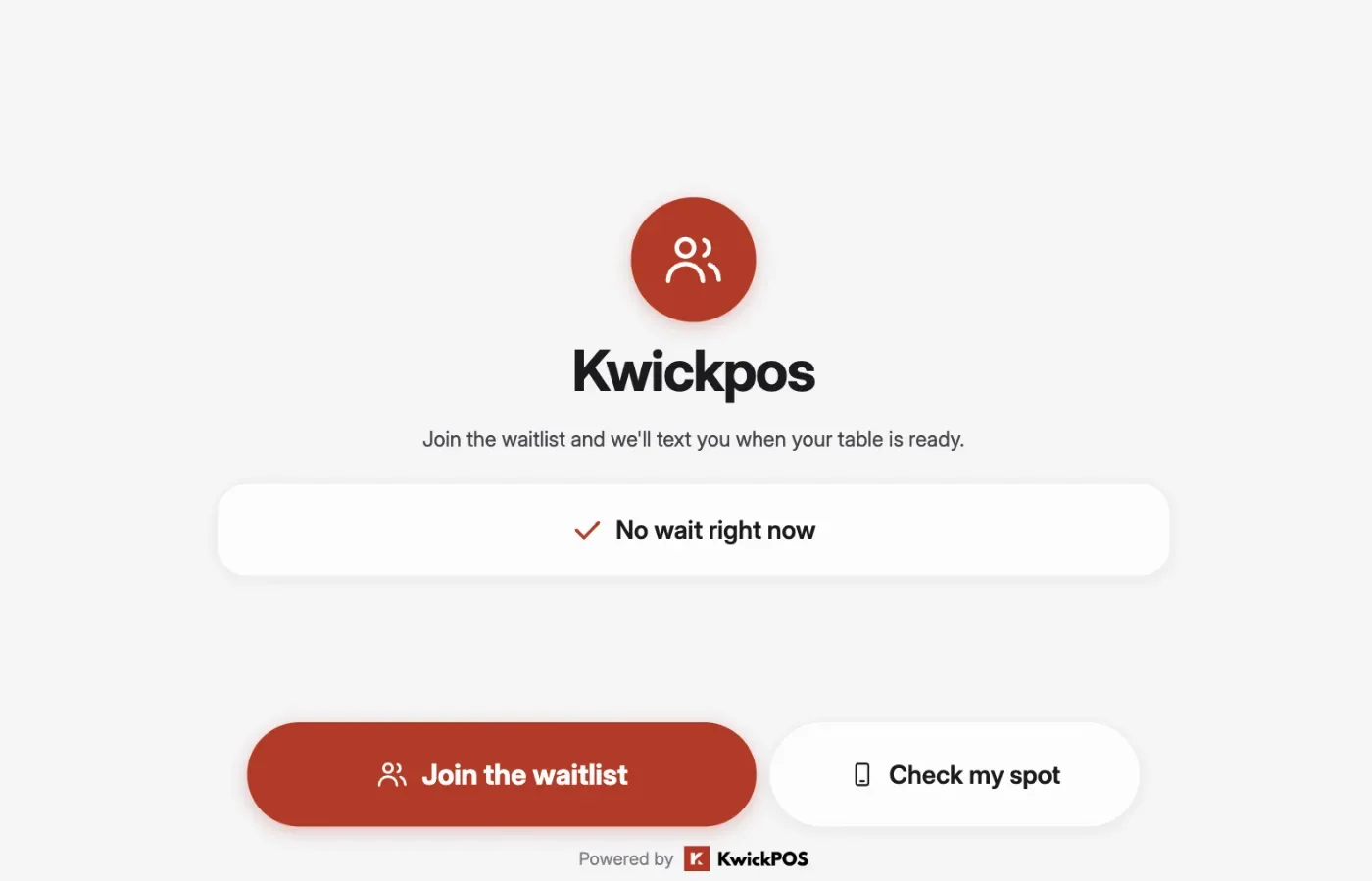
- The new version introduces a new waitlist page where customers can join the waiting list. To enable it, select v2027 for setting General > New Wait List, set Setup > Orders > Misc > Waiting Terminal Theme to Future, and set the terminal mode to Waiting.
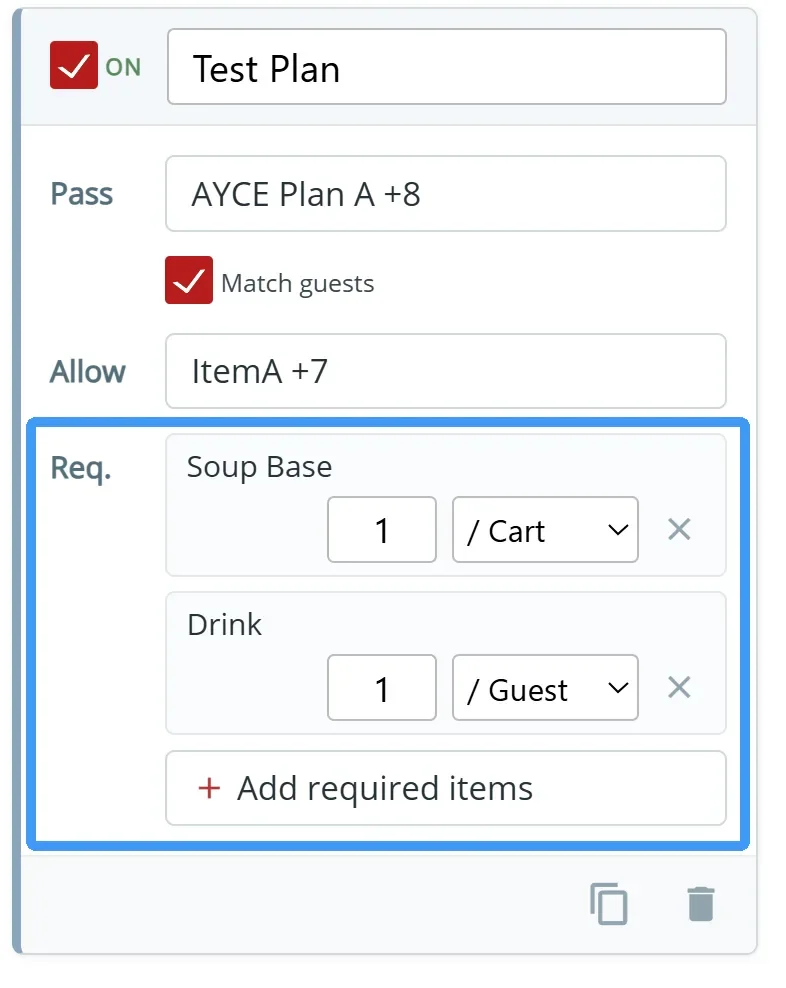
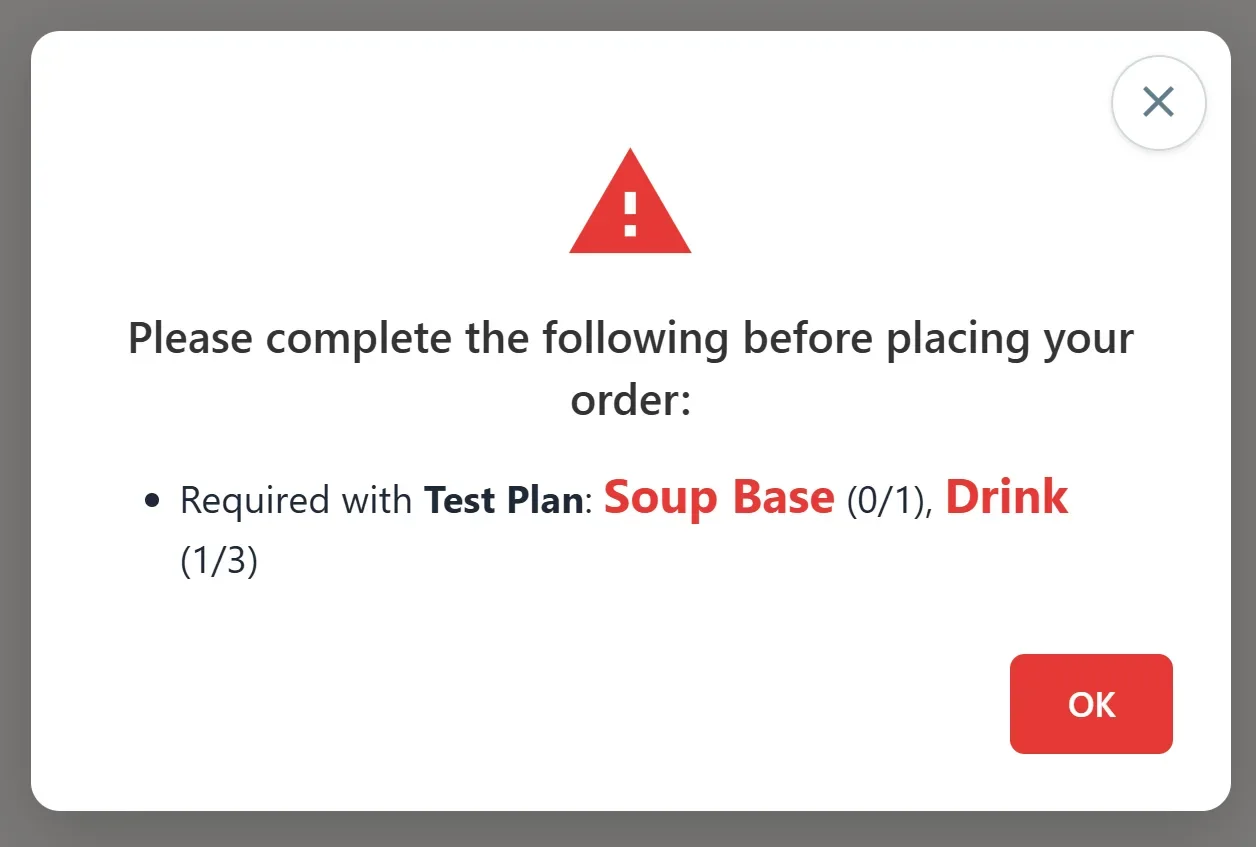
- In the new version, users can now add required items for custom AYCE Plan. The required items can be set based on number per cart or number per guest. The required items will not count toward the items per order round limit. Configure at: Apps > AYCE > By Item [Ticket #369672]
Online:
Payment:
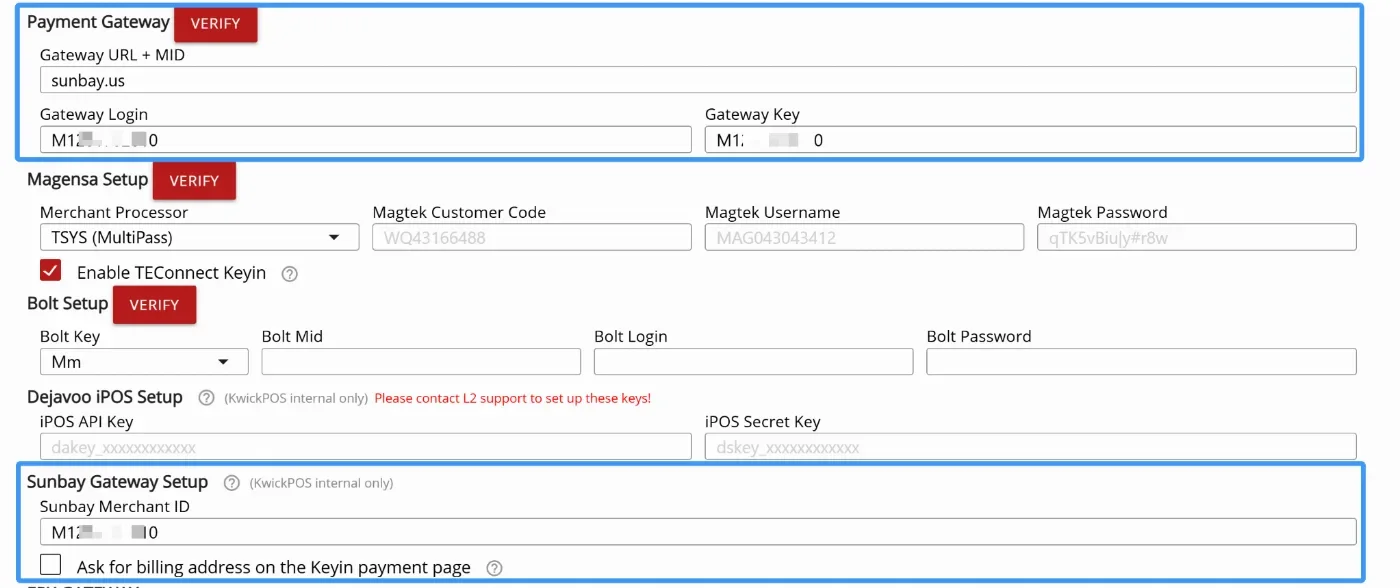
- In the new version, we added Sunbay Gateway as an option for online order gateway. To configure it, go to Setup > Payments > Credit Setting > Payment Gateway, enter 'sunbay.us' for Gateway URL + MID, and enter the Sunbay merchant ID in Gateway Login and Gateway Key. Also, under Setup > Payments > Credit Setting > Sunbay Gateway Setup > Sunbay Merchant ID, put the Sunbay merchant id. Currently, Sunbay gateway supports key-in payment for online order and apple pay on iphone when using Tsys processor. It also supports void online payment on POS for same day order.
KwickMenu.com:
- The new version adds a switch to control whether KwickDriver is enabled for online orders. To disable it for online orders only, enable Setup > Order Types > Delivery > Disable KwickPOS delivery service for online only.
Still need a hand?
Our 24/7 support team can walk you through it.
Call (888) 355-6996